 KemptDesk
Quick answer
System Data (called Other in older macOS versions) is the row in System Settings > General > Storage for files that fit no other category: logs, caches, VM files, temporary files, fonts, app support files and plug-ins. You cannot delete it as one item. Shrink it by clearing app caches, removing Time Machine local snapshots and cleaning Docker inside Docker.
On this page
Where System Data lives
System Data is not one folder. Storage settings takes the total of its named categories away from the used space, and System Data is what is left. Howard Oakley of The Eclectic Light Company calls that figure a "guesstimate".
It is one part of what fills a Mac and what is safe to delete. The usual places behind it are:
~/Library/Cachesand~/Library/Logs: app caches and logs.~/Library/Application Support,~/Library/Containersand~/Library/Group Containers: app data, including Docker Desktop's disk image./Library/Cachesand/Library/Application Support: data shared by all users.- Your temporary folder. Run
echo $TMPDIRin Terminal to see its path. - Time Machine local snapshots: APFS snapshots of the startup disk, not a folder.
To open a hidden Library folder, choose Go > Go to Folder in Finder, type the path and press Return. Or hold the Option key and choose Go > Library.
What is inside System Data
Caches, logs, VM files and temporary files
Apps keep data they can re-create in ~/Library/Caches, and Apple tells developers that apps should never rely on cache files. When space is needed, macOS clears caches and logs that are safe to delete, such as interrupted downloads, staged updates and Safari website data. VM files and system temporary files are managed by macOS; do not delete them by hand.
Time Machine local snapshots
When Back Up Automatically is on, Time Machine saves a snapshot of the startup disk about every hour and keeps it for 24 hours. It keeps a snapshot of the last successful backup until space is needed, and it saves one before each macOS update.
Apple says the Mac counts snapshot space as available storage and deletes snapshots as space is needed. Howard Oakley found that deleted data held in snapshots often lands in System Data, and his tests on macOS Tahoe showed that the automatic purge does not always happen.
Docker and virtual machines
Docker Desktop stores all Linux containers and images in one large disk image file, Docker.raw, in ~/Library/Containers/com.docker.docker/Data/vms/0/data. Storage settings has no category for it, so it is one of the files that can end up in System Data.
Docker's documentation says space is freed only when images are deleted. Why Docker disks keep growing and how to shrink them has the full steps.
App support data and leftovers
Apple's developer guide says ~/Library/Application Support holds app data and "can include files that contain user data". Apps you removed can leave these folders behind. Remove a leftover only after you check what it holds.
What is not in System Data
iPhone and iPad backups have their own row: Apple puts them in iOS Files, together with device software files. Delete old backups there or in Finder > your device > Manage Backups. Xcode's build data in ~/Library/Developer can be large too; see DerivedData, Archives, simulators and device support.
What is safe to delete in System Data
| Path | What it is | Safe to delete | What happens if you delete it | How to clean it |
|---|---|---|---|---|
~/ | App caches | Yes | Apps rebuild them; the first launch can be slower | Quit apps, move app cache folders to the Trash, keep iCloud and account caches |
~/ | App log files | Yes | You lose old troubleshooting records | Move old log files to the Trash in Finder |
/ | Caches shared by all users | Careful | Needs an administrator; system services rebuild them | Leave to macOS, or start up in Safe Mode once |
$TMPDIR | Your temporary folder | Careful | Apps that are running can lose files they still use | Leave it to macOS, or remove only old files with apps closed |
com.apple.TimeMachine.<date>.local | Time Machine local snapshots | Careful | You lose hourly versions from the last 24 hours; backups on the backup disk stay | Time Machine settings or tmutil, see steps below |
~/ | Docker Desktop disk image | No | All containers, images and volumes are lost | docker system prune or Docker settings |
~/ | App data | Careful | The app resets and can lose your data | Delete folders only of apps you removed |
~/ | Sandboxed app data | Careful | The app resets and can lose your data | Uninstall the app, then check leftovers |
~/ | iPhone and iPad backups (iOS Files) | Careful | A deleted backup cannot be recovered | Finder > device > Manage Backups |
/ | macOS itself | No | macOS does not allow it; Apple says it must not be modified | Never delete; update or reinstall macOS instead |
How to shrink System Data by hand
Work from the safest step to the riskiest. If System Data is large but you still have enough free space, you can wait: macOS purges caches and snapshots when space is needed.
- Choose Apple menu > System Settings > General > Storage and note the size of System Data. Empty the Trash and use the other categories first.
- Open Terminal (Applications > Utilities) and list Time Machine local snapshots. This command only reads:
tmutil listlocalsnapshots /- To remove snapshots the Apple way, open System Settings > General > Time Machine and click Options. Set Backup Frequency to Manually, click Done, wait a few minutes, then set it back.
- Or use Terminal. The next command deletes all local snapshots of the startup disk; backups on the Time Machine disk are not touched. Terminal asks for your administrator password.
sudo tmutil deletelocalsnapshots /- Clear app caches. Quit your apps, then follow the safe way to clear ~/Library/Caches.
- In Docker Desktop, Settings > Resources > Advanced shows the disk image size. The next command removes all stopped containers, unused networks, dangling images and build cache:
docker system prune- Remove unused virtual machines from inside their own app.
- Start up in Safe Mode once, then restart normally. This can clear some system caches. Apple's Safe Mode page gives the steps for Apple silicon and Intel Macs.
- Check free space again. Howard Oakley advises Disk Utility for an accurate free-space figure, because Storage settings and Finder can leave out purgeable space.
How KemptDesk handles this
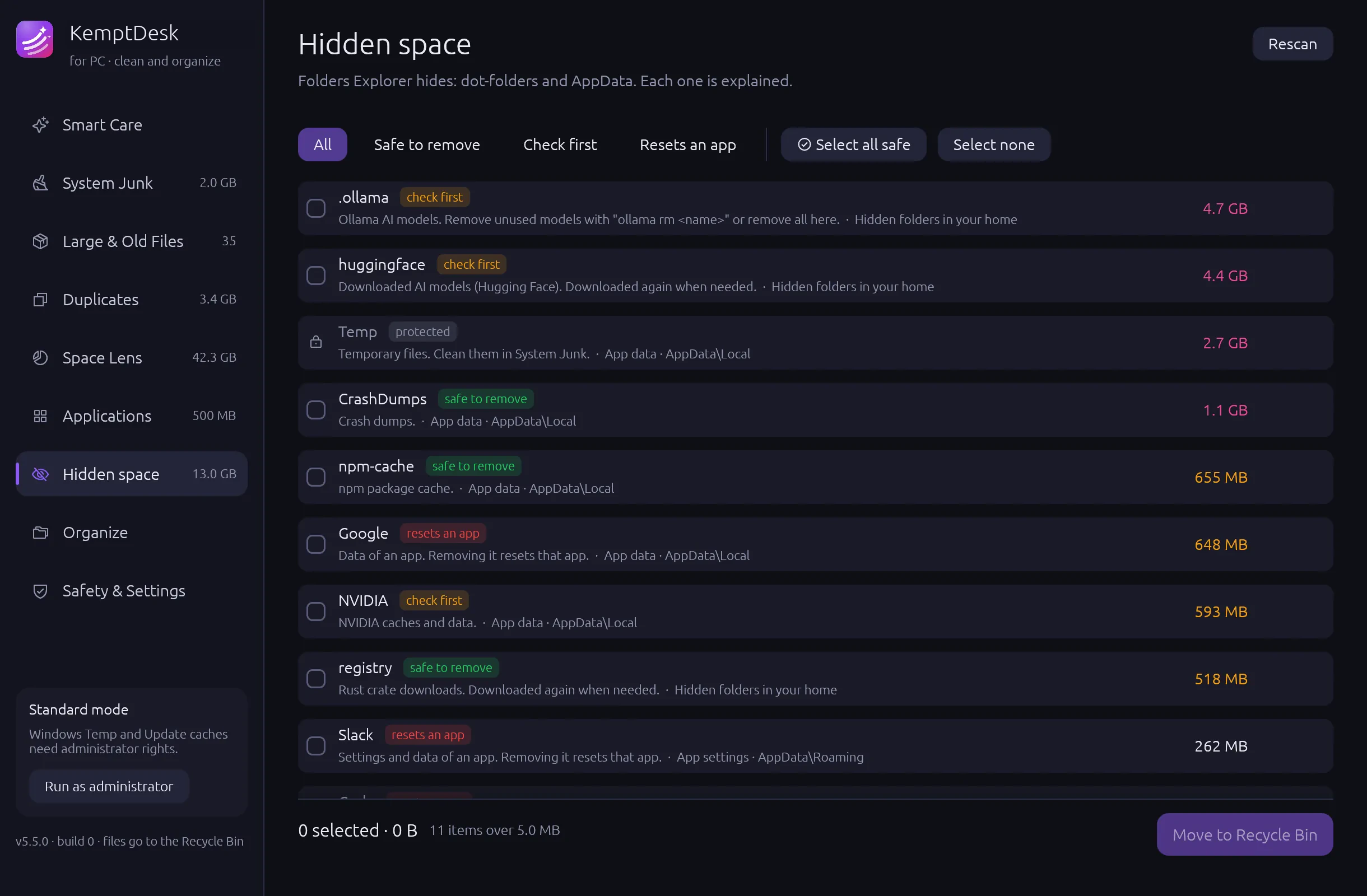
KemptDesk's Hidden space page measures the folders behind System Data: Application Support, Containers, Group Containers, Developer, Caches and Messages in ~/Library, plus hidden folders in your home. Each folder gets an explanation and a colour. App caches are Safe to clean. iPhone backups are Check first and are listed by device name and backup date. Docker's disk is Breaks an app and is never selected; KemptDesk tells you to clean it inside Docker. A card shows how many Time Machine local snapshots exist. Remove snapshots deletes all of them after macOS asks for your administrator password. KemptDesk does not touch /System or /Library, and it cannot delete a single snapshot.
Questions
Why is System Data so large on my Mac?
System Data is everything Storage settings cannot put in another category. Large amounts usually come from Time Machine local snapshots, app caches, a Docker or virtual machine disk, or data left by removed apps.
Can I delete System Data on a Mac?
Not as one item. Apple says you cannot manage System Data in Storage settings, so you shrink it by cleaning the folders and snapshots behind it.
Why did System Data shrink after I changed Time Machine settings?
Apple's way to delete local snapshots is to turn automatic backups off for a few minutes. The snapshots are deleted, and the space they held is freed.
Is it safe to delete Time Machine local snapshots?
Yes, if you accept losing the hourly versions from the last day. Your backups on the Time Machine disk are separate and stay.
Is System Data the same as Other?
Yes. Apple's article names the category "System Data (or Other)". Older versions of macOS used the name Other.
Sources
- Change Storage settings on Mac (Mac User Guide)
- Free up storage space on Mac (Apple Support)
- Optimize storage space on your Mac (Mac User Guide)
- About Time Machine local snapshots (Apple Support)
- About Time Machine local snapshots (Mac User Guide)
- Locate and manage backups of your iPhone, iPad, and iPod touch (Apple Support)
- Start up your Mac in safe mode (Apple Support)
- Library folder (Mac User Guide glossary)
- macOS Library directory details (Apple File System Programming Guide)
- File System Basics (Apple File System Programming Guide)
- Docker Desktop FAQs for Mac (Docker Docs)
- What is System Data in Storage Settings? (The Eclectic Light Company)
- Aren't snapshots purgeable? (The Eclectic Light Company)
- Time Machine: tmutil (The Eclectic Light Company)
- Apple announces macOS Golden Gate release date (MacRumors)
- What is system data and why I can't clean it (Apple Community)