 KemptDesk
Quick answer
When your Mac says its storage is full, open System Settings > General > Storage first. It shows what uses the space and offers Apple's own fixes. Caches, old iPhone backups, Xcode build data and installers in ~/Downloads are usually safe to remove. Never delete files inside /System, a photo library or a Docker disk image by hand.
On this page
- Start with Storage settings
- Check in this order
- The biggest space users
- System Data
- App caches
- iPhone and iPad backups
- Time Machine local snapshots
- Mail and Messages attachments
- Downloads folder
- Xcode
- Docker and virtual machines
- Local AI models
- Developer caches
- Photos and iCloud
- Apps and leftovers
- What not to delete
- How KemptDesk handles this
- Questions
- Sources
Start with Storage settings
Storage settings is Apple's built-in tool and the safest first step. On versions before macOS 13 Ventura, choose Apple menu > About This Mac > Storage.
- Choose Apple menu > System Settings.
- Click General in the sidebar, then click Storage. You may need to scroll down.
- Wait until the bar chart is complete. It shows used space by category and the free space.
- Read the recommendations: Store in iCloud, Optimize Storage and Empty Trash Automatically.
- Click the Info button (i) next to a category to open it. Select a file you do not need and click Delete, or click Show in Finder to see it first.
Apple lists these categories you can open: Applications, Documents, iCloud Drive, iOS Files, Mail, Messages, Music Creation, Photos and Trash, plus TV, Music, Books and Podcasts. Three rows show a size only: Other Users & Shared, macOS and System Data. You cannot delete them from this window.
- Store in iCloud moves Desktop and Documents files to iCloud Drive and keeps only recent files on the Mac. It uses your iCloud plan.
- Optimize Storage removes Apple TV movies and shows you already watched, and keeps only recent email attachments.
- Empty Trash Automatically erases items that have been in the Trash for more than 30 days.
Check in this order
- Empty the Trash. Apple notes that deleted files do not free space until you empty the Trash.
- Accept the Storage settings recommendations you are comfortable with.
- Open Documents in Storage settings and look at Large Files and Downloads. Then look in
~/Downloadsitself. To search the whole disk, see how to find the largest files. - Delete old iPhone and iPad backups in the iOS Files category.
- Clean up Mail and Messages attachments.
- Remove apps you no longer use, together with their leftovers.
- If you write code: check Xcode, Docker, local AI models and package caches.
- Clear app caches in
~/Library/Caches, with the apps closed. - Last, look at System Data and Time Machine local snapshots.
The biggest space users
| What | Where | Typical cause | Safe to delete | Guide |
|---|---|---|---|---|
| System Data | Many folders in ~/ and / | Caches, logs, VM files, snapshots, app data | Careful | System Data |
| App caches | ~/ | Data apps can re-create | Yes | App caches |
| iPhone and iPad backups | ~/ | Each device backed up in Finder | Careful | Backups |
| Time Machine local snapshots | Startup disk (APFS snapshots, not a folder) | Hourly snapshots while automatic backups are on | Careful | Snapshots |
| Mail attachments | ~/ | Attachments you opened in Mail | Careful | Mail and Messages |
| Downloads | ~/ | Installers, disk images, archives | Careful | Downloads |
| Xcode build data | ~/ | Every project you build | Yes | Xcode |
| Docker and virtual machines | ~/ | Images, containers and volumes | No | Docker and VMs |
| Local AI models | ~/ | Downloaded models | Careful | AI models |
| Developer caches | ~/, ~/, ~/, node_modules | Package downloads and project dependencies | Yes | Developer caches |
| Photos library | ~/ (the usual name) | Full-size originals of every photo | No | Photos and iCloud |
| Apps and leftovers | /, ~/ | Apps you no longer use | Careful | Apps |
System Data
System Data is the Storage settings row for files that fit no other category. Apple lists logs, caches, VM files, temporary files, fonts, app support files and plug-ins. Apple also says you cannot manage the contents of this category, and that its size changes with the state of your Mac.
System Data is a remainder, so it often holds space that has a simple cause, such as Time Machine local snapshots or a large Docker disk. What System Data contains and how to shrink it lists each part, its path and the safe way to reduce it.
App caches
Apps keep data they can re-create in ~/Library/Caches, one folder per app. Apple's developer guide says apps should never rely on cache files, so removing them is safe when the app is closed. The app can be slower the first time while it rebuilds the cache.
Keep the iCloud and account caches, and leave /Library/Caches to macOS. Whether ~/Library/Caches is safe to delete gives the steps and the folders to keep.
iPhone and iPad backups
Finder saves iPhone and iPad backups in ~/Library/Application Support/MobileSync/Backup. Storage settings shows them in the iOS Files category, together with device software files. Backups of devices you no longer own are a common, large win.
To delete a backup in Finder:
- Connect the device to the Mac with a cable and select it in the Finder sidebar.
- If asked, tap Trust on the device and enter its passcode.
- Click the General tab, then click Manage Backups.
- Control-click the backup, choose Delete, then click OK.
You can also open iOS Files in Storage settings, select an old backup and click Delete.
Encrypted backups, backups on a PC and moving backups to another disk are in where iPhone backups are kept and how to delete old ones.
Time Machine local snapshots
When Back Up Automatically is on, Time Machine saves a snapshot of the startup disk about every hour and keeps it for 24 hours. It also keeps a snapshot of the last successful backup until space is needed. Snapshots stay on the same disk, separate from your backup disk.
Apple says the Mac counts snapshot space as available storage and deletes snapshots when space is needed. Tests by Howard Oakley on macOS Tahoe found that this purge is not always reliable.
To remove snapshots the Apple way, open System Settings > General > Time Machine and click Options. Set Backup Frequency to Manually, click Done, wait a few minutes, then set it back. The System Data guide gives the Terminal commands, and purgeable space and local snapshots explains why free-space numbers differ.
Mail and Messages attachments
Mail always downloads media attachments. For other types, choose Mail > Settings > Accounts > Account Information and set Download Attachments to All, Recent (the past 15 months) or None. In Mail > Settings > General, "Remove unedited downloads" sets when Mail removes its temporary copies in Mail Downloads.
Apple also suggests Mailbox > Erase Junk Mail and Mailbox > Erase Deleted Items. Message > Remove Attachments deletes the attachments of a message; for IMAP accounts they are also deleted from the server for good. For Messages, open the Messages category in Storage settings and delete large attachments you no longer need. How to clean up Messages and Mail attachments covers the Keep Messages setting and Mail Downloads.
Downloads folder
Apple's own list of things to remove includes files in the Downloads folder. Typical items are installers (.dmg and .pkg) of apps you already installed, old archives and repeat downloads of the same file.
Look first: Downloads often holds the only copy of a document. How to sort a messy Downloads folder shows how to sort it by hand or automatically.
Xcode
Xcode keeps build data in ~/Library/Developer/Xcode/DerivedData, debug symbols in ~/Library/Developer/Xcode/iOS DeviceSupport and simulators in ~/Library/Developer/CoreSimulator. On the Apple Developer Forums, the accepted answer says DerivedData can be deleted at any time and grows back as you build.
Apple Developer Technical Support advises managing simulators in Xcode (Window > Devices and Simulators) or with the simctl tool, and quitting Xcode before you delete anything. DerivedData, Archives, simulators and device support covers each folder.
Docker and virtual machines
Docker Desktop keeps all Linux images, containers and volumes in one large disk image file. Settings > Resources > Advanced shows where the file is and how much space it uses. Space is freed only when you delete images, not when you delete files inside a running container.
Docker's documentation says docker system prune removes all stopped containers, unused networks, dangling images and build cache. Do not move or delete the disk image in Finder. Remove a virtual machine from inside the app that created it. Why Docker disks keep growing and how to shrink them safely has the full steps.
Local AI models
Ollama stores its models in ~/.ollama/models by default. Run ollama ls to list them and ollama rm followed by the model name to remove one. Each model is a large download, so remove only the models you will not use again.
Where Ollama, LM Studio and Hugging Face keep models lists every location and the remove commands.
Developer caches
Package managers keep download caches in your home folder, for example ~/.npm for npm. Packages download again when a project needs them. Every JavaScript project also has its own node_modules folder, which npm install installs again from package.json and the lockfile.
node_modules and npm, Cargo and Gradle caches explains which caches are safe and the official clean commands.
Photos and iCloud
Your Photos library is a single package. Never change files inside it in Finder. To save space, choose Photos > Settings > iCloud, select iCloud Photos, then select Optimize Mac Storage.
The Mac then keeps smaller versions of your photos when space is limited, and the originals stay in iCloud. Download Originals to this Mac reverses it. Apple also suggests moving large Photos or iMovie libraries to an external drive.
iCloud Drive can also keep files online only; see how iCloud Drive and OneDrive free local space. For copies of the same photo or file, use the Duplicates album in Photos or find duplicate files safely.
Apps and leftovers
Open Applications in Storage settings to see your apps by size, select one you no longer use and click Delete. Apps also leave data in ~/Library/Application Support, ~/Library/Caches and ~/Library/Containers.
Apple's developer guide says Application Support can include files that contain user data. Check what a folder holds before you remove it, and remove it only for apps you have deleted. How to uninstall apps completely lists every leftover folder and which ones are safe to remove.
What not to delete
- Anything in
/System. Apple says these files are required by macOS and must not be modified. - Files inside a
.photoslibrarypackage, a Docker disk image or a virtual machine disk. ~/Library/Application Supportfolders of apps you still use.- iPhone backups that are your only copy of a device.
Never paste a sudo rm -rf command for a system folder from a forum.
How KemptDesk handles this
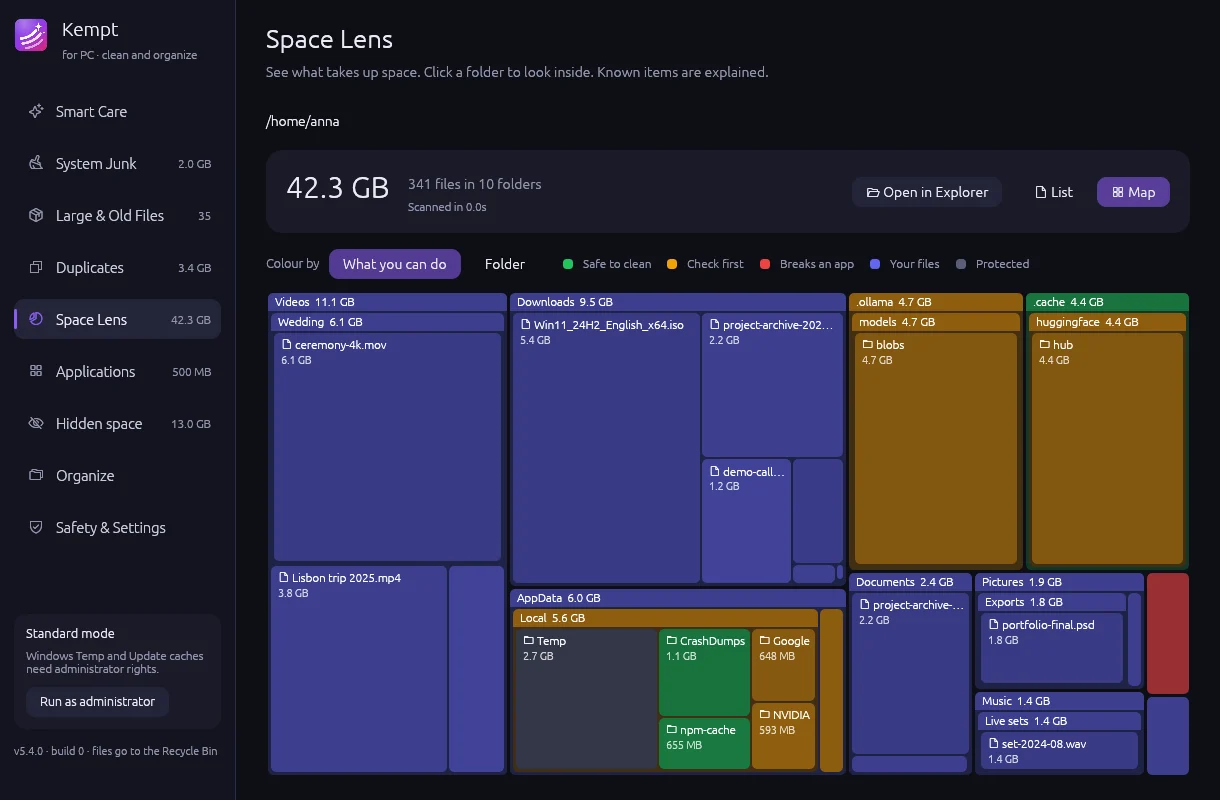
KemptDesk runs the full scan for free and colours every folder by what you can do with it. Smart Care puts junk, large files, duplicates, apps and hidden folders in one list. Safe to clean items, such as app and browser caches, are selected for you. Old iPhone backups and local AI models are Check first: KemptDesk gives a reason and you decide. Docker disks and virtual machines are Breaks an app and are never selected. Your files go to the Trash first. Caches, temporary files, old logs and crash reports are deleted directly, and the review marks them "permanent" before you confirm. The system, iCloud Drive and iCloud caches are Protected. KemptDesk does not change your Storage settings, iCloud or Time Machine settings. The free version cleans up to 500 MB.
Questions
Why is my Mac storage still full after I deleted files?
Deleted files stay in the Trash until you empty it, and Apple says the space is not free until then. Time Machine local snapshots can also hold deleted files for up to 24 hours.
What is safe to delete on a Mac to free up space?
App caches in ~/Library/Caches with the apps closed, backups of devices you no longer use, Xcode DerivedData, package caches and installers in Downloads. Check first before you delete anything in Application Support, and never delete inside /System.
Why is System Data so big on my Mac?
System Data is the space left after every other category is counted. It holds caches, logs, VM files, app data and often Time Machine local snapshots or a Docker disk, so check those first.
Can I delete the macOS or System Data rows in Storage settings?
No. Apple says Other Users & Shared, macOS and System Data cannot be selected or deleted in Storage settings. You shrink System Data by cleaning the folders and snapshots behind it.
Do I need a cleaner app to free up space on a Mac?
No. Storage settings, Finder and each app's own settings do the core jobs for free. A cleaner app saves time by finding hidden folders and explaining them; CleanMyMac alternatives compared lists the options.
Sources
- Free up storage space on Mac (Apple Support)
- Change Storage settings on Mac (Mac User Guide)
- Optimize storage space on your Mac (Mac User Guide)
- About Time Machine local snapshots (Apple Support)
- About Time Machine local snapshots (Mac User Guide)
- Locate and manage backups of your iPhone, iPad, and iPod touch (Apple Support)
- Change Account Information settings in Mail on Mac (Mail User Guide)
- Change General settings in Mail on Mac (Mail User Guide)
- Email attachments in Mail on Mac (Mail User Guide)
- Optimize storage in Photos on Mac (Photos User Guide)
- macOS Library directory details (Apple File System Programming Guide)
- File System Basics (Apple File System Programming Guide)
- Xcode using 90GB with ~/Library/Developer: what can I safely clean? (Apple Developer Forums)
- Docker Desktop FAQs for Mac (Docker Docs)
- Ollama FAQ (Ollama Docs)
- Ollama CLI reference (Ollama Docs)
- npm folders (npm Docs)
- npm install (npm Docs)
- What is System Data in Storage Settings? (The Eclectic Light Company)
- Aren't snapshots purgeable? (The Eclectic Light Company)
- Apple announces macOS Golden Gate release date (MacRumors)
- Mac mini "System Data" is consuming 150GB of storage, how do I fix it? (Apple Community)
- What is system data and why I can't clean it (Apple Community)