 KemptDesk
Quick answer
When the C: drive is full, start with the tools built into Windows: Settings > System > Storage > Cleanup recommendations, Storage Sense and Disk Cleanup. Temporary files, old update downloads and the Recycle Bin are safe to delete. Never delete C:\Windows\WinSxS, pagefile.sys or hiberfil.sys by hand; shrink them with DISM, Disk Cleanup or powercfg instead.
On this page
- Check in this order
- Use Storage Sense and Disk Cleanup first
- The biggest space users on C:
- WinSxS, Windows.old and update files
- AppData and Temp folders
- WSL and Docker disks
- Local AI models
- Developer caches and node_modules
- The Downloads folder
- Hibernation file, page file and restore points
- The Recycle Bin, apps and games
- How KemptDesk handles this
- Questions
- Sources
Most of the space on a full C: drive comes from a few places. Some are safe to empty at any time, some hold your files, and some belong to Windows itself. This page shows the order to check them and links to a detailed guide for each part.
Check in this order
- See what uses the space. Select Start > Settings > System > Storage. The capacity bar turns red when the drive is low on space.
- Run Cleanup recommendations. In Storage, select Cleanup recommendations. Review Temporary files, Large or unused files, Files synced to the cloud and Unused apps, then select Clean up for each section. Files synced to the cloud can stay online only; see how OneDrive and iCloud free local space.
- Remove the previous Windows version if you upgraded and do not want to go back. It is listed as Previous Windows installation(s).
- Clean up update files. In Disk Cleanup, select the item that cleans up old Windows updates and Delivery Optimization Files.
- Empty the Recycle Bin and sort Downloads. Check first that nothing in them is still needed.
- Uninstall apps and games you do not use. Select Settings > Apps > Installed apps.
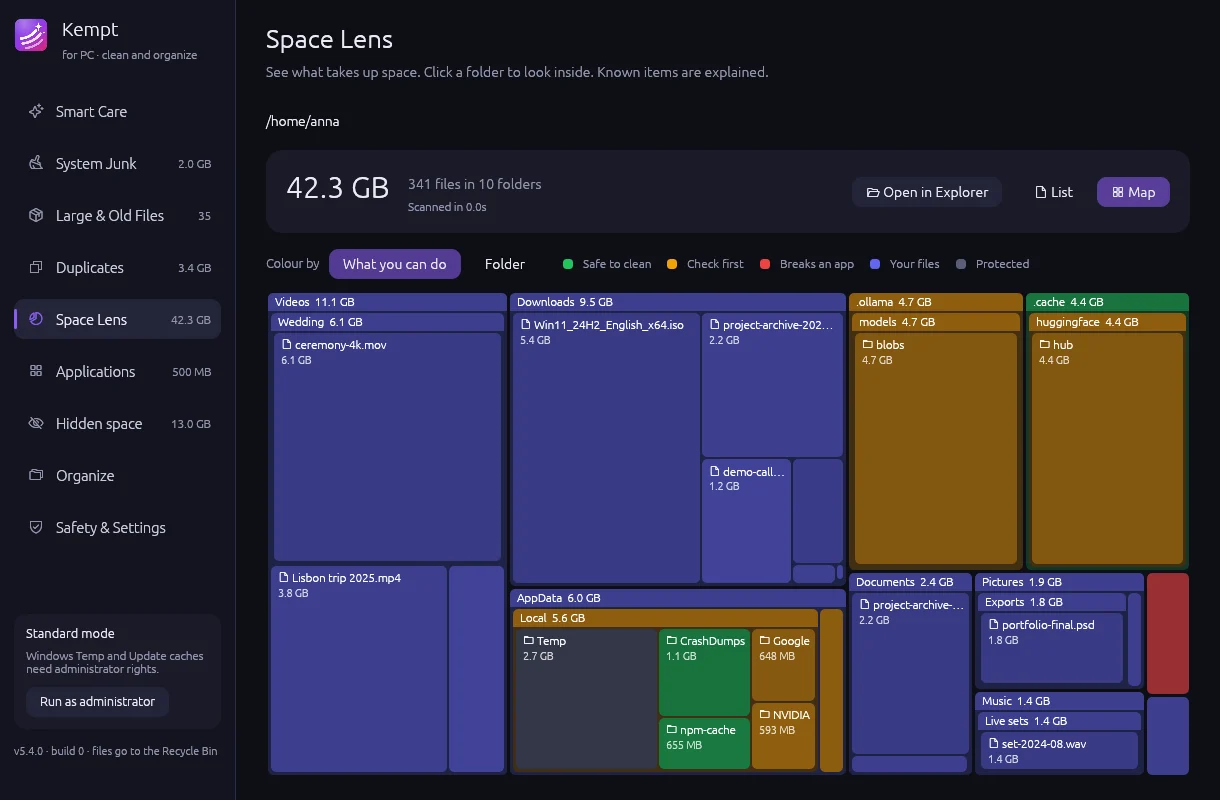
- Look at hidden data: AppData, WSL and Docker disks, and local AI models.
- Change system settings last: hibernation, the page file and System Restore. Each one has a cost, so read the section on them first.
Use Storage Sense and Disk Cleanup first
Windows has three free tools for a full drive. They know which system files are safe to remove, so use them before you delete anything by hand.
Cleanup recommendations
Select Start > Settings > System > Storage > Cleanup recommendations. Windows groups what it can remove into Temporary files, Large or unused files, Files synced to the cloud and Unused apps. Look through each list, select what to remove, then select Clean up.
Storage Sense
Storage Sense removes temporary files and old Recycle Bin items for you. It works only on the system drive (C:).
- Select Start > Settings > System > Storage.
- Turn Storage Sense on.
- Select Storage Sense to set how often it runs and how long items stay in the Recycle Bin.
- Leave the Downloads setting off unless you want Windows to delete old downloads. Microsoft says Downloads is not managed unless you choose it.
Storage Sense can also make OneDrive files online-only when you have not opened them for a set time. The files stay in OneDrive and download again when you open them.
Disk Cleanup
Disk Cleanup is the older tool. Microsoft still documents it for Windows 10 and 11, and its update clean-up option also shrinks the component store.
- In the search box on the taskbar, type Disk Cleanup, then select it. You can also press Windows logo key + R, type
cleanmgr.exeand select OK. - Select drive C: and select OK.
- On the Disk Cleanup tab, select the items to remove, for example Delivery Optimization Files, Temporary files and the item that cleans up old Windows updates.
- Select OK, then Delete Files.
The biggest space users on C:
| What | Where | Typical cause | Safe to delete | Guide |
|---|---|---|---|---|
| Previous Windows version | C:\ | A Windows upgrade keeps the old system so you can go back | Careful | Windows.old and WinSxS |
| Component store | C:\ | Old versions of updated Windows components | No | Windows.old and WinSxS |
| Windows Update downloads | C:\ | Update files that are already installed | Yes | Windows.old and WinSxS |
| Delivery Optimization files | Disk Cleanup item "Delivery Optimization Files" | Update files kept to share with other PCs | Yes | Windows.old and WinSxS |
| Temporary files | %TEMP% and C:\ | Apps and installers leave files behind | Yes | AppData and Temp |
| App and browser data | %LOCALAPPDATA% and %APPDATA% | Browser profiles, chat apps, Store apps | Careful | AppData and Temp |
| Hibernation file | C:\ | About the same size as your RAM | No | System files |
| Page file | C:\ | Virtual memory that Windows sizes itself | No | System files |
| Restore points | C:\ | System Protection snapshots | Careful | System files |
| Recycle Bin | C:\ | Deleted files wait here until you empty it | Careful | Recycle Bin, apps, games |
| Downloads | %USERPROFILE%\ | Installers, disk images and archives | Careful | Downloads |
| WSL and Docker disks | ext4.vhdx files under %LOCALAPPDATA% | Linux disks grow but do not shrink | No | WSL and Docker |
| Games and apps | Install folders and game libraries | Large installs you no longer play or use | Careful | Recycle Bin, apps, games |
| Local AI models | %USERPROFILE%\ and similar | Downloaded models | Careful | Local AI models |
| Developer caches | node_modules, %LOCALAPPDATA%\ | Package downloads and build output | Careful | Developer caches |
Yes means Windows or the app gets the files back on its own. Careful means you can lose something you need, so look first. No means do not delete the file or folder by hand; use the tool named in the guide.
WinSxS, Windows.old and update files
C:\Windows\WinSxS is the component store. File Explorer shows it larger than it is, because many of its files are hard links to files that Windows uses elsewhere. Microsoft warns that deleting files from it can stop Windows from booting, so shrink it only with DISM or Disk Cleanup. C:\Windows.old holds your previous Windows version after an upgrade. In most cases you have 10 days to go back, and Windows deletes it after that.
Read how to shrink WinSxS, Windows.old and SoftwareDistribution safely for the exact DISM commands, the rollback window and the safe way to clear old update downloads.
C:\Windows\Installer is another large hidden folder. Windows needs its files to repair, update and uninstall programs, so never delete them by hand. Read why the Windows Installer folder is large for the safe options.
AppData and Temp folders
%USERPROFILE%\AppData is hidden and holds the settings and data of every app you use, in three folders: Local, LocalLow and Roaming. Never delete AppData or one of those three folders as a whole. The Temp folder inside it, and C:\Windows\Temp, are safe to empty; Windows skips files that are in use.
Read which AppData and Temp files are safe to delete to clear browser and Teams caches the supported way. Two other large items often hide in your user folder: iPhone and iPad backups from iTunes or Apple Devices, and DirectX and graphics driver shader caches.
WSL and Docker disks
WSL 2 keeps each Linux distribution in one ext4.vhdx file. Microsoft says the file expands as you use it, with a default maximum of 1 TB, and that making it smaller is much more complicated. Deleting files inside Linux does not give the space back to Windows, and deleting the .vhdx file deletes the whole distribution. Docker Desktop keeps the data of its WSL 2 engine in C:\Users\[USERNAME]\AppData\Local\Docker\wsl by default.
Read how to shrink WSL and Docker disks safely before you touch these files.
Local AI models
Tools such as Ollama, LM Studio and Hugging Face download models that can each take many gigabytes. Ollama keeps its models in C:\Users\%username%\.ollama\models on Windows, and the OLLAMA_MODELS environment variable moves them to another drive.
Read where local AI models are stored and how to remove them to remove a model with its own tool.
Developer caches and node_modules
If you write code, package managers keep download caches, and every project can have its own node_modules folder. Caches download again when needed, but a deleted node_modules folder must be installed again before the project runs.
Read which developer caches and node_modules folders to delete for the official clean commands for npm, Cargo and Gradle.
The Downloads folder
Downloads often holds old installers, disk images and archives that you no longer need. Microsoft suggests the largest files are usually in Videos, Music, Pictures and Downloads. In File Explorer, select View > Details, right-click an empty area and choose Sort by > Size to see the biggest files first.
Read how to sort a messy Downloads folder to clean it by hand or automatically. To search the whole drive, see how to find the largest files, and for copies of the same file, how to delete duplicate files safely.
Hibernation file, page file and restore points
These three items belong to Windows. Do not delete the files. Change the setting that creates them, and only when you accept the cost.
hiberfil.sys
C:\hiberfil.sys stores a copy of memory when the PC hibernates. Microsoft says it is about the same size as the installed RAM. To remove it, turn off hibernation: open Command Prompt as administrator and run the command below. Without the file, hibernation and hybrid sleep stop working, and Microsoft warns that you can lose data if power fails while hybrid sleep is on.
powercfg.exe /hibernate offTo turn hibernation back on, run powercfg.exe /hibernate on. hiberfil.sys and pagefile.sys explained shows how to keep fast startup with a smaller file.
pagefile.sys
C:\pagefile.sys extends memory. Microsoft says a system-managed page file can grow to the larger of 3 times physical memory or 4 GB, but not more than one-eighth of the volume. Some apps need a page file, and Windows uses it for crash dumps and its memory limit. Leave it on system-managed size.
System Restore points
Restore points are snapshots of system files, installed apps, the registry and settings, stored in C:\System Volume Information. Press Windows logo key + R, type systempropertiesprotection.exe and press Enter. Select the drive, select Configure, and move the slider to set the most space System Protection can use. A smaller limit keeps fewer restore points.
The Recycle Bin, apps and games
Files you delete in File Explorer go to the Recycle Bin and still use space until you empty it. Emptying it is permanent, so look inside first. Storage Sense can empty items that have been there longer than the period you choose.
Apps and games can be the largest items on the drive. Select Start > Settings > Apps > Installed apps, find an app you do not use, then select More > Uninstall. Remove games with the launcher you installed them from, such as Steam or the Xbox app. Never delete folders in C:\Program Files by hand; use the app's uninstaller. How to uninstall apps completely covers the folders an app leaves behind.
How KemptDesk handles this
KemptDesk runs on Windows 10 and 11. Its System Junk list selects temporary files older than 24 hours, browser caches and app caches (Safe to clean). C:\Windows\Temp and Windows Update downloads need administrator, and update downloads are not ticked for you. The Recycle Bin is listed but off by default. Windows.old, WinSxS, pagefile.sys, hiberfil.sys and restore points are Protected: KemptDesk shows their size and the Windows tool to use, and never selects them. WSL and Docker disks are Breaks an app; KemptDesk offers a compact step instead. Programs are removed with their own uninstaller. The free version scans everything and cleans up to 500 MB. Windows shows a warning the first time it opens; install help explains it.
Questions
Why is my C drive suddenly full when I have not installed anything?
Windows updates, a feature upgrade that left Windows.old, temporary files, restore points and growing app caches all use space without a new install. WSL and Docker disks also grow on their own. Open Settings > System > Storage to see which category grew, then follow the order at the top of the page.
Can I delete the Windows.old folder?
Yes, if you do not want to go back to the previous version. Use Settings > System > Storage > Cleanup recommendations > Previous Windows installation(s). Windows deletes it by itself 10 days after the upgrade.
Is it safe to delete pagefile.sys and hiberfil.sys?
Not by hand. Turn off hibernation with powercfg.exe /hibernate off to remove hiberfil.sys, and leave pagefile.sys on system-managed size, because Windows and some apps need it.
Can I delete the WinSxS folder?
No. Microsoft warns that deleting it, or files in it, can stop Windows from booting or updating. Run Dism.exe /online /Cleanup-Image /StartComponentCleanup from an elevated Command Prompt instead.
Do I need a cleaner app to free up space?
Not for Windows' own files: Storage Sense, Cleanup recommendations, Disk Cleanup and DISM handle them for free. A cleaner app can help you find large folders and app caches; see CCleaner alternatives compared if you want one.
Sources
- Free up drive space in Windows (Microsoft Support)
- Manage drive space with Storage Sense (Microsoft Support)
- Free up space for Windows updates (Microsoft Support)
- KB5012334: Delete the Windows.old folder using Storage sense in the Settings app (Microsoft Support)
- Go back to the previous version of Windows (Microsoft Support)
- Delete your previous version of Windows (Microsoft Support)
- Clean up the WinSxS folder (Microsoft Learn)
- Determine the actual size of the WinSxS folder (Microsoft Learn)
- Delivery Optimization frequently asked questions (Microsoft Learn)
- Disk Cleanup (Microsoft Learn)
- cleanmgr command (Microsoft Learn)
- How to disable and re-enable hibernation (Microsoft Learn)
- Introduction to page files (Microsoft Learn)
- System Protection (Microsoft Support)
- How to manage WSL disk space (Microsoft Learn)
- Ollama FAQ: where are models stored (Ollama docs)
- Uninstall or remove apps and programs in Windows (Microsoft Support)
- Docker Desktop WSL 2 backend on Windows (Docker docs)
- Manage drive space with Storage Sense (Microsoft Support)
- Docker Desktop WSL 2 backend (Docker Docs)
- Clean up the WinSxS folder (Microsoft Learn)
- Windows 11 release information (Microsoft Learn)
- Why is my C drive suddenly full but I have nothing on it? (Microsoft Tech Community, question wording)