 KemptDesk
Quick answer
Local AI models sit in hidden folders in your home folder: Ollama uses ~/.ollama/models, LM Studio uses ~/.lmstudio/models, and Hugging Face uses ~/.cache/huggingface/hub. They are safe to remove if you accept a new download later. Remove them with each tool's own command, such as ollama rm <model>, not by deleting random files.
On this page
Where the models are
Each tool keeps models in a dot-folder in your home folder. On a Mac, ~ is /Users/<you>; on Windows, C:\Users\<you>.
Models you run in Docker or WSL live inside their virtual disk instead: see how to shrink a WSL or Docker disk.
If you do not know what fills your disk, start with what fills a Mac and what is safe to delete or what fills a Windows C: drive.
Ollama
- Mac:
~/.ollama/models - Windows:
C:\Users\%username%\.ollama\models
On Windows, %HOMEPATH%\.ollama holds models and configuration, %LOCALAPPDATA%\Ollama holds logs and updates, and %LOCALAPPDATA%\Programs\Ollama holds the program.
LM Studio
- Mac:
~/.lmstudio/models - Windows: the
.lmstudio\modelsfolder in your user folder
The My Models tab in LM Studio shows the exact folder. Older versions can use a different folder, so check it there.
LM Studio keeps the Hugging Face layout: models/<publisher>/<model>/<file>.gguf. The same .lmstudio folder also holds your chats (conversations) and presets (config-presets), so do not delete the whole folder.
Hugging Face
- Mac:
~/.cache/huggingface/hub - Windows:
C:\Users\<you>\.cache\huggingface\hub
The parent folder is HF_HOME, which defaults to ~/.cache/huggingface. It holds more than models: your Hugging Face sign-in token, the Xet cache (xet) and the assets cache (assets).
What is safe to delete
| Path | What it is | Safe to delete | What happens if you delete it | How to clean it |
|---|---|---|---|---|
~/ | Ollama model files (blobs and manifests) | Careful | The models are gone and must be downloaded again. | ollama rm <model> for each model you do not use |
~/ (the whole folder) | Ollama models and configuration | Careful | You lose all models and Ollama's settings and keys. | Remove models with ollama rm; leave the folder |
%LOCALAPPDATA%\ | Ollama logs and downloaded updates (Windows) | Yes | Old logs and update files are gone. Quit Ollama first. | Delete old files in File Explorer |
%LOCALAPPDATA%\ | The Ollama program (Windows) | No | Ollama stops working. | Settings › Apps › Installed apps › Ollama › Uninstall |
~/ | LM Studio model files | Careful | LM Studio must download the models again. | Remove one <publisher>/ folder at a time |
~/ (the whole folder) | LM Studio models, chats and presets | No | Your chats and presets are lost. | Clean only models |
~/ | Hugging Face model and dataset cache | Careful | Scripts download the files again the next time they run. | hf cache rm or hf cache prune |
~/ (the whole folder) | HF_HOME: cache, token, Xet and assets caches | Careful | You are signed out of Hugging Face and all cached models are gone. | Clean hub with hf cache; keep the token |
How to remove models with each tool's own commands
Each tool knows which files belong to which model, so use its own command first.
Ollama
- Open Terminal (Mac) or PowerShell (Windows).
- List the models on your computer. The short form is
ollama ls.
ollama list- Check that the model is not running, and stop it if it is.
ollama ps
ollama stop gemma4- Remove the model. This command deletes the model's files from disk.
ollama rm gemma4Use the name that ollama list shows.
LM Studio
- Open LM Studio and select the My Models tab. It shows the models folder and your models.
- If My Models shows a delete option for a model you do not use, use it.
- If there is no delete option, quit LM Studio, open the models folder, and move one
<publisher>/<model>folder to the Trash or Recycle Bin. - Check the result:
lms lslists the models on disk.
lms lsThe lms docs list no command that deletes a model from disk. lms unload only frees memory.
Hugging Face
The current command line tool is hf. It comes with pip install -U "huggingface_hub", and the Hugging Face CLI guide lists other installers.
- List what is in the cache, with sizes.
hf cache ls
hf cache ls --sort size:desc --limit 10- Preview a removal.
--dry-rundeletes nothing.
hf cache rm model/bert-base-cased --dry-run- Remove the model. This command deletes every cached file of that repository.
hf cache rm model/bert-base-cased- Remove leftovers. This command deletes old unreferenced revisions, unfinished
.incompletedownloads and blobs that no cached repository uses.
hf cache prune --dry-run
hf cache prune
Update huggingface_hub before you use hf cache rm or hf cache prune. Hugging Face says that older clients can delete a shared file that another repository still uses.
How to move the models to another disk
Moving the models to a second drive frees the system disk without a new download.
Ollama: OLLAMA_MODELS
On Windows:
- Quit Ollama from the taskbar.
- Open Settings and search for "environment variables". Select Edit environment variables for your account.
- Create the variable
OLLAMA_MODELSand set it to the new folder, for exampleD:\ollama-models. - Click OK, then start Ollama from the Start menu.
On a Mac, Ollama's FAQ says to set variables for the Ollama app with launchctl, then restart the app.
launchctl setenv OLLAMA_MODELS "/Volumes/External/ollama-models"Ollama then looks only in the new folder. Pull the models again with ollama pull, then delete the old models folder. If you uninstall Ollama later on Windows, the uninstaller does not remove models in a changed location.
LM Studio: models directory
Open the My Models tab and change the models directory there. Move the existing <publisher>/<model> folders to the new folder so LM Studio finds them.
Hugging Face: HF_HOME or HF_HUB_CACHE
HF_HOME moves the whole Hugging Face folder; HF_HUB_CACHE moves only the model cache. Set them before your script starts.
On a Mac, add the line to ~/.zshrc, then open a new Terminal window:
export HF_HOME="/Volumes/External/huggingface"On Windows, run this once, then open a new PowerShell window:
setx HF_HOME "D:\huggingface"How KemptDesk handles this
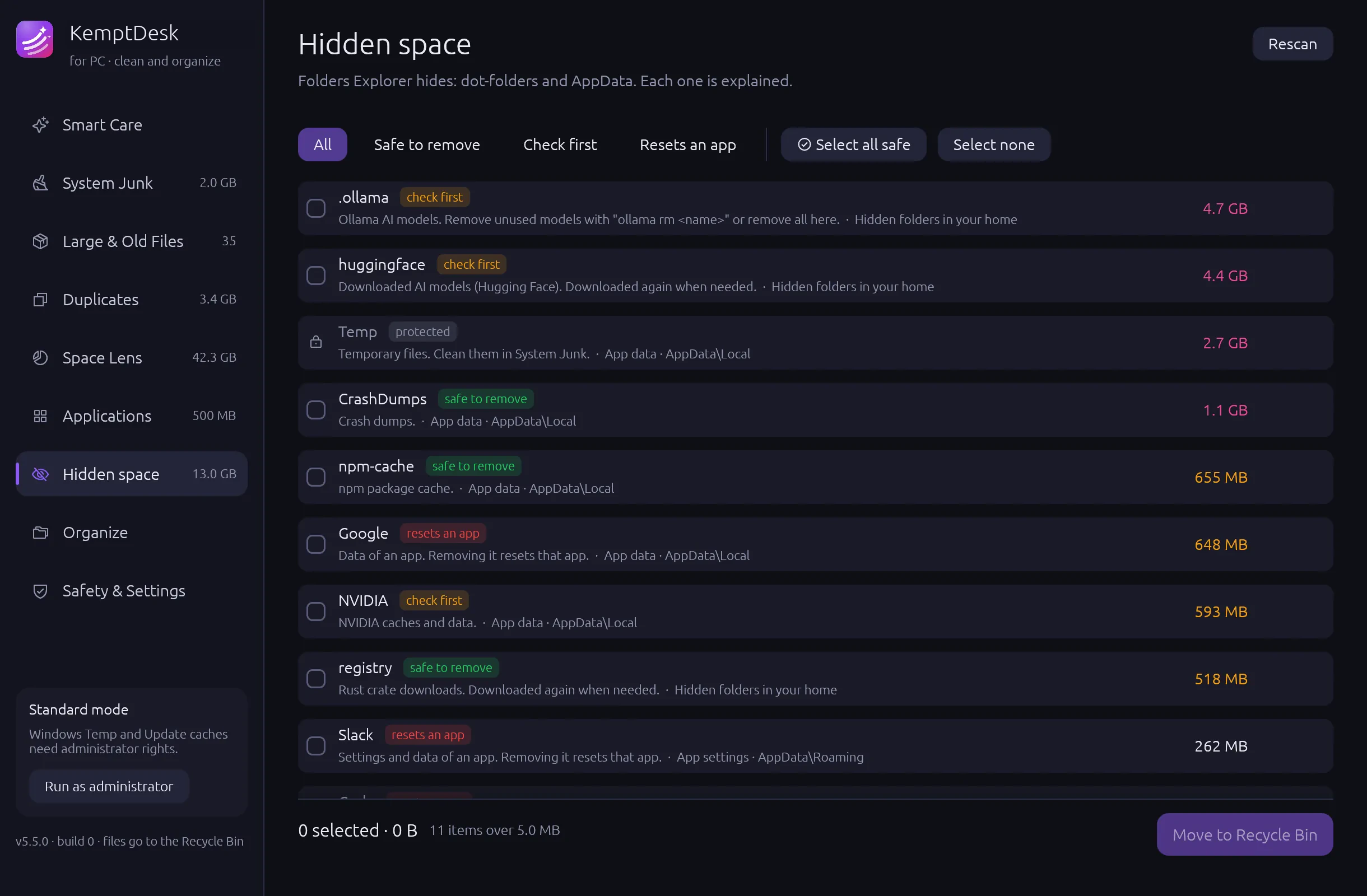
KemptDesk shows ~/.ollama, ~/.cache/huggingface, ~/.lmstudio and ~/.cache/lm-studio under Hidden space, each with its size and an explanation. All four are marked Check first (amber): KemptDesk never selects them for you, and the one-click "Clean recommended" action leaves them out. For Ollama, KemptDesk suggests ollama rm <name>.
KemptDesk does not list single models inside these folders, and it does not read OLLAMA_MODELS or HF_HOME. A models folder in another place is treated as your files. Inside .ollama, model files are locked in Space Lens unless you turn on expert mode.
Questions
Can I just delete the .ollama folder?
You can, but you lose every model and Ollama's configuration. Run ollama list first and remove only the models you do not use with ollama rm.
Why is my Hugging Face cache so big when I only downloaded one model?
The cache keeps every revision you downloaded, and on Windows without symlinks the same file can be stored more than once. Run hf cache ls --revisions to see them, then hf cache prune to remove the old ones.
Do I lose my models if I uninstall Ollama or LM Studio?
Not always. On Windows, Ollama's docs say the uninstaller does not remove models in a changed OLLAMA_MODELS location. Check the models folder after you uninstall and delete it if you no longer need it.
Sources
- Ollama FAQ: where models are stored and how to set OLLAMA_MODELS
- Ollama for Windows: storage locations and uninstall
- Ollama CLI reference
- Ollama README (CLI reference with ollama list)
- LM Studio: download a model and change the models directory
- LM Studio: import models and the models folder layout
- LM Studio: sideload models (default models directory)
- LM Studio CLI (lms) reference
- LM Studio full documentation text (Windows .lmstudio paths)
- Hugging Face Hub: manage the cache system
- Hugging Face Hub: environment variables (HF_HOME, HF_HUB_CACHE)
- Hugging Face Hub: command line interface
- Hugging Face blog: Say hello to hf
- Hugging Face Hub v0.30 cache guide (older huggingface-cli commands)