 KemptDesk
Quick answer
On a Mac, open System Settings > General > Storage, click the Info button next to Documents and choose Large Files. On Windows, open Settings > System > Storage, or search File Explorer for size:gigantic to list files over 4 GB. Videos and disk images are usually safe to move or delete; virtual machine disks are not.
On this page
Where large files usually are
Most big files sit in a few places. Check these first, before you search the whole disk.
On a Mac:
~/Movies,~/Desktopand~/Downloads: videos, screen recordings, disk images (.dmg,.iso) and archives.~/Library/Application Support/MobileSync/Backup: iPhone and iPad backups.~/Pictures/Photos Library.photoslibrary: the Photos library, which holds every original.~/Library/Containers/com.docker.docker/Data/vms/0/data/Docker.raw: the Docker Desktop disk.~/.ollama/models: local AI models.
On Windows:
C:\Users\<you>\Videos,DesktopandDownloads: videos, ISO files and installers.C:\hiberfil.sysandC:\pagefile.sys: hidden system files for hibernation and virtual memory.%USERPROFILE%\Apple\MobileSync\Backupor%APPDATA%\Apple Computer\MobileSync\Backup: iPhone and iPad backups.%LOCALAPPDATA%: WSL and Docker keep their Linux disks here as.vhdxfiles.Documents\Outlook Filesand%LOCALAPPDATA%\Microsoft\Outlook: Outlook data files (.pstand.ost).
For the full picture of what fills each system, see what fills a Mac and in what order to check and what fills a Windows C: drive.
Which large files are safe to delete
| Path | What it is | Safe to delete | What happens if you delete it | How to clean it |
|---|---|---|---|---|
~/, Downloads\ | Installers and disk images | Yes | Nothing, if the app is installed. You download the file again if you need it. | Move to the Trash or Recycle Bin |
~/, C:\ | Your videos and screen recordings | Careful | It can be your only copy. | Copy to an external drive, check that it plays, then delete |
~/ | iPhone and iPad backups | Careful | Apple says a deleted backup cannot be recovered. | Delete old backups in Finder or the Apple Devices app |
~/ | The Photos library | No | You can lose photos, videos and edits. | Delete photos inside Photos, or turn on Optimize Mac Storage |
Docker.raw, *.vhdx in %LOCALAPPDATA% | Docker and WSL Linux disks | No | All containers, images and Linux files are gone. | Prune inside Docker, then compact the disk |
*.vmdk, *.vdi, *.vhdx, ~/ | Virtual machine disks | No | The virtual machine and every file in it are gone. | Delete the virtual machine inside the app that made it |
C:\, C:\ | Hibernation and paging files | No | Windows uses them while it runs. | Change the hibernation or virtual memory settings |
Documents\ | Outlook data file with your mail | No | The mail, contacts and calendar items in it are lost. | Delete or archive mail inside Outlook |
%LOCALAPPDATA%\ | Offline copy of a mail account | Careful | Outlook downloads the mail again from the server, which can take a long time. | Leave it, or remove the account in Outlook first |
~/ | Local AI models | Careful | You download the model again before you can use it. | Remove models with the tool's own command |
C:\ | The previous Windows installation | Careful | You can no longer go back to the previous version of Windows. | Settings > System > Storage > Temporary files > Previous Windows installation(s) |
How to find large files on a Mac
Storage settings
- Choose Apple menu > System Settings.
- Click General in the sidebar, then click Storage.
- Wait until the bar chart is complete, then click the Info button (i) next to Documents.
- Click Large Files to see your biggest documents, or Downloads to see old downloads.
- Click File Browser to see folders with the space they use.
- Select a file and click Show in Finder to see where it is, or click Delete.
Old iPhone backups are under iOS Files in the same window. Where iPhone backups are kept and how to delete old ones gives the steps for a Mac and a PC.
Finder search with a size rule
- In Finder, choose File > Find.
- Click This Mac so the search covers the whole Mac.
- Click the first pop-up menu (it shows Kind) and choose Other.
- Select File Size in the list and click OK.
- Choose is greater than, type
1and choose GB. - To keep this search, click Save and give it a name. It then updates by itself.
Terminal
These commands only read sizes. They do not delete or move anything.
To see how big each folder in your home folder is:
du -sh ~/*To list the 20 biggest folders, largest first (sizes in kilobytes):
du -sk ~/* | sort -rn | head -20To list every file in your home folder that is larger than 1 GB:
find ~ -type f -size +1G 2>/dev/nullIn find, G means gigabytes of 1,024 megabytes. The 2>/dev/null part hides "Permission denied" lines. The du command counts a file with several hard links only once. macOS can block Terminal from some app folders until you give it Full Disk Access.
How to find large files on Windows
Storage settings
- Select Start > Settings > System > Storage.
- Wait for the categories to load, then select Show more categories.
- Select a category, such as Videos, Documents or Other, to see what it holds.
- In Other, Windows lists large folders that fit no category. Select a folder to open it in File Explorer.
- In Windows 11, select Cleanup recommendations and open Large or unused files. Select the files you do not need, then select Clean up.
File Explorer search
- Open File Explorer and select This PC, or open the folder you want to search.
- Type
size:giganticin the search box and press Enter. - Select View > Details, then select the Size column heading to sort the results.
Windows defines these size words: size:gigantic is over 4 GB, size:huge is 1 GB to 4 GB and size:large is 128 MB to 1 GB. OneDrive files that are only online can show in the results, but they use almost no local space.
PowerShell
These commands only read sizes. To list the 20 biggest files in your user folder, in gigabytes:
Get-ChildItem -Path $HOME -File -Recurse -ErrorAction SilentlyContinue |
  Sort-Object -Property Length -Descending |
  Select-Object -First 20 -Property FullName, @{Name = 'GB'; Expression = { [math]::Round($_.Length / 1GB, 2) }}
To see the size of each folder in your user folder, largest first:
Get-ChildItem -Path $HOME -Directory | ForEach-Object {
  $sum = (Get-ChildItem -Path $_.FullName -File -Recurse -Force -ErrorAction SilentlyContinue |
    Measure-Object -Property Length -Sum).Sum
  [pscustomobject]@{ Folder = $_.Name; GB = [math]::Round($sum / 1GB, 2) }
} | Sort-Object -Property GB -Descending
-Force includes hidden and system files. -ErrorAction SilentlyContinue skips folders that you cannot open.
Decide what to delete
Delete it if it is an installer for an app you already have, a disk image you no longer need, a video you keep a second copy of, or a backup of a device you no longer own.
Keep it if it is a virtual machine or Docker disk, a photo or music library, an Outlook .pst file, or a large file in ~/Library or AppData that you do not recognize. Remove those from inside the app that owns them.
How KemptDesk handles this
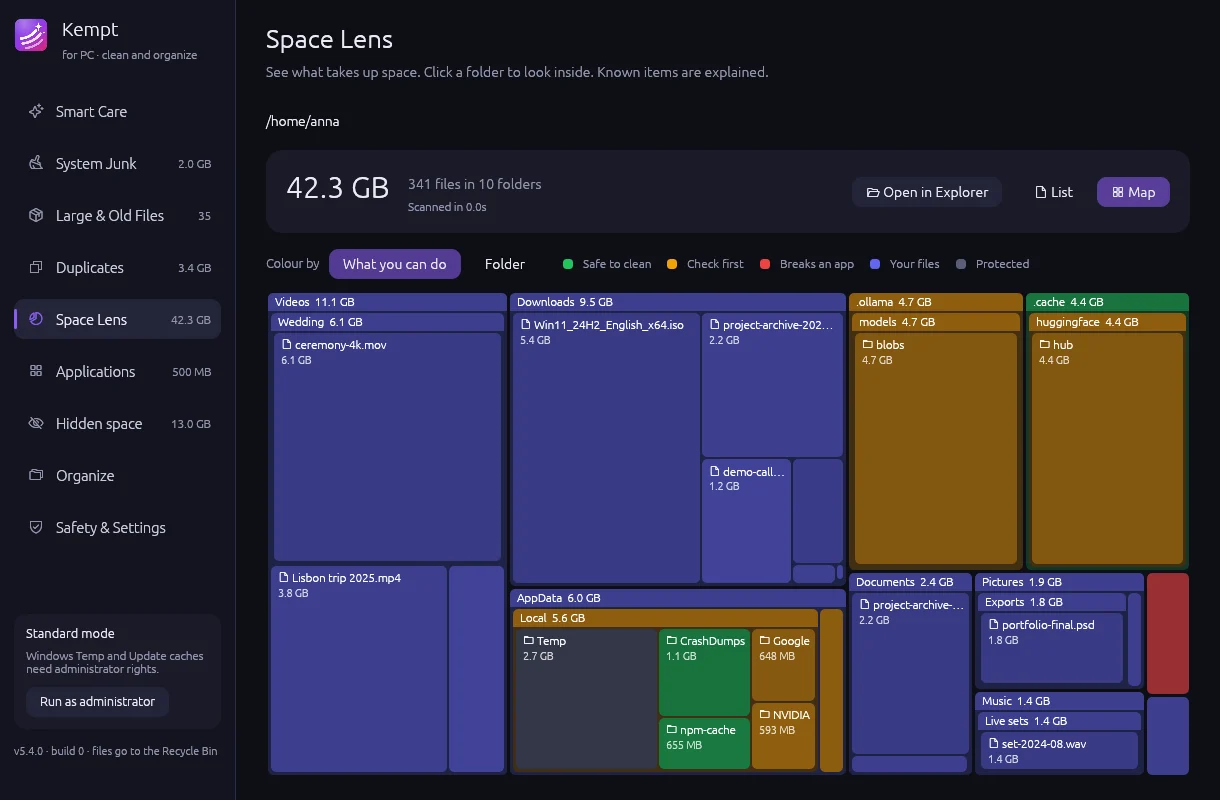
KemptDesk's Large & Old Files page lists big files from one scan. You filter by size (10 MB to 5 GB), by age (not changed in 3 months, 6 months or a year) and by type. Space Lens shows the same scan as a box map, coloured by what you can do. Videos, documents and disk images are Your files (indigo): shown, never selected for you. Virtual machine disks are Breaks an app (red) and stay locked unless you turn on expert mode. Selected files go to the Trash or Recycle Bin. KemptDesk never reads or downloads files that are only in iCloud or OneDrive. It does not move files to an external drive.
Questions
How do I see folder sizes on a Mac?
Open System Settings > General > Storage, click the Info button next to Documents and click File Browser. In Terminal, du -sh ~/* shows the size of each folder in your home folder.
What does size:gigantic mean in File Explorer?
It finds files larger than 4 GB. Windows also defines size:huge for 1 GB to 4 GB and size:large for 128 MB to 1 GB.
Can I delete a .vmdk or .vhdx file to free space?
Only if you want to lose the whole virtual machine or Linux system in it. Delete the virtual machine inside the app that made it, or use the app's own tools to make the disk smaller.
Why can't I delete hiberfil.sys or pagefile.sys?
Windows uses them while it runs. You make them smaller through Windows settings; what hiberfil.sys and pagefile.sys are gives the safe steps.
Do I need an app to find large files?
No. Storage settings, Finder, File Explorer, Terminal and PowerShell find them for free. A disk map is faster to read; DaisyDisk and KemptDesk compared shows two options.
Sources
- Find and delete files on your Mac (Mac User Guide)
- Change Storage settings on Mac (Mac User Guide)
- Narrow search results on Mac (Mac User Guide)
- Locate and manage backups of your iPhone, iPad, and iPod touch (Apple Support)
- du(1) manual page (Apple open source, file_cmds)
- find(1) manual page (Apple open source, shell_cmds)
- Storage settings in Windows (Microsoft Support)
- Free up drive space in Windows (Microsoft Support)
- System.Size property and its size ranges (Microsoft Learn)
- Get-ChildItem (Microsoft Learn)
- Sort-Object (Microsoft Learn)
- Measure-Object (Microsoft Learn)
- Introduction to Outlook Data Files (.pst and .ost) (Microsoft Support)
- Save disk space with OneDrive Files On-Demand for Windows (Microsoft Support)
- Build a cloud sync engine that supports placeholder files (Microsoft Learn)
- Finding large / old files on macOS (Apple Community, the question people ask)